¶ Protection Sponges
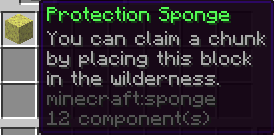
Snapcraft uses Sponges to claim Protected Chunks. These sponges are easily identified by their unique name and lore.
¶ Claiming & Unclaiming
¶ Claiming Land
To protect land, you will place your Protection Sponge in the chunk you wish to protect. You may use F3+G to view chunk borders.
Once you place a sponge, it will automatically create a new claim for the chunk it was placed in, then the sponge disappears. You can use /claims view to see the claim border.
¶ Unclaiming Land
If you wish to unclaim the chunk, the sponge will return to your inventory. You will use /claims unclaim to unclaim the specific chunk you're standing in.
You can use /claims delete (name) to remove an entire claim and unclaim all of it's chunks.
Use precaution with this command, using it will permanently delete all chunks and protection of a specific claim.
¶ Creating & Managing Claims
¶ Creating Claims
Once you protect a chunk, it automatically will become one claim. To extend a specific claim, you will claim chunks that are directly connected to eachother.
If you wish to create a separate claim, you can do so by ensuring your newly claimed chunks are not connected to your other claims.
¶ Managing Claims
Use /claims to view all claims management tools.
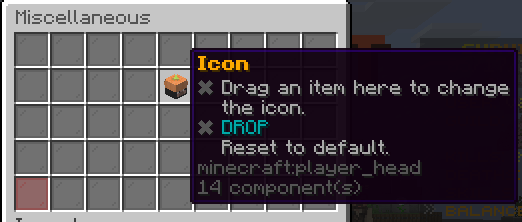
Below is the main menu that will appear when you own 0 claims.
¶ Navigating Main Menu
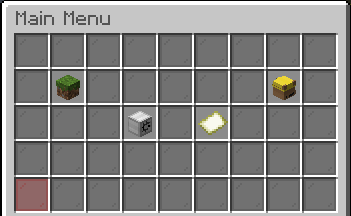
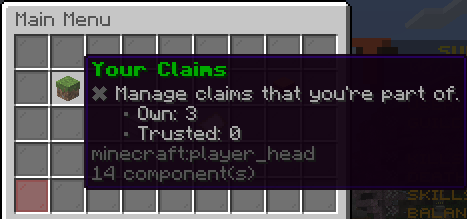
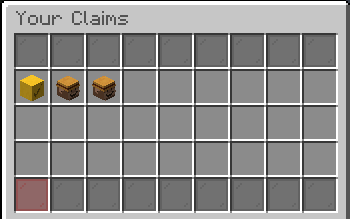
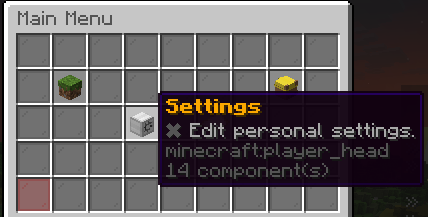
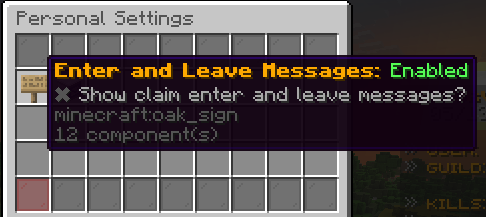
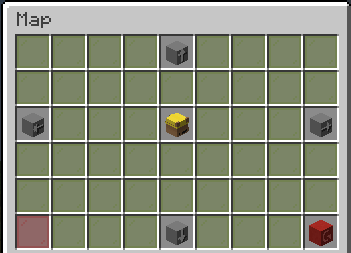
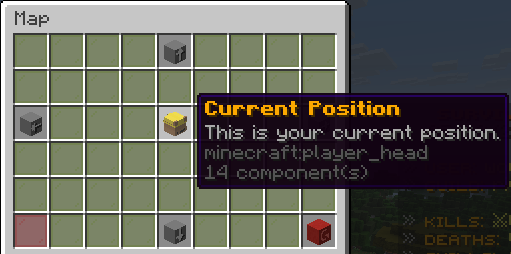
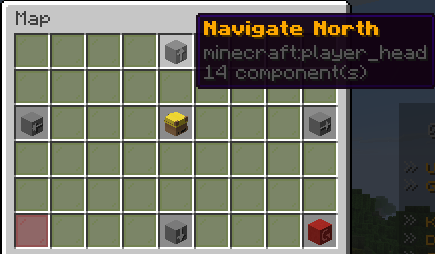
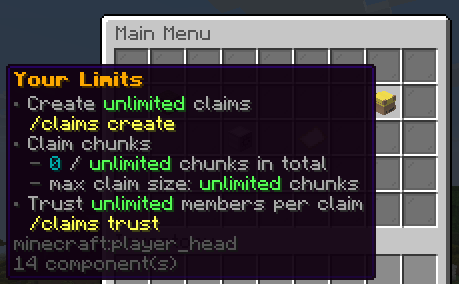

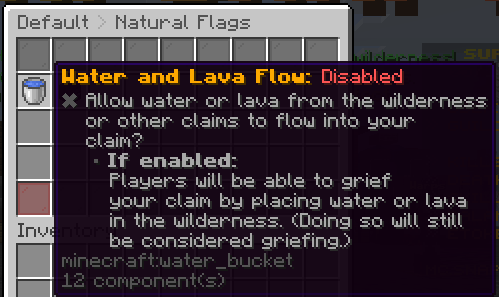
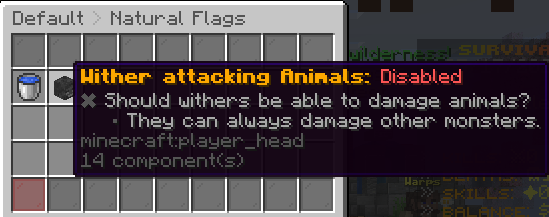
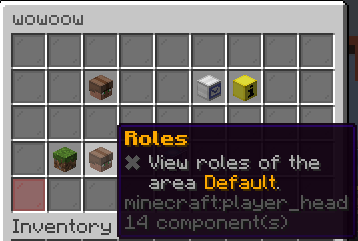
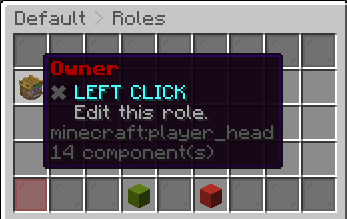
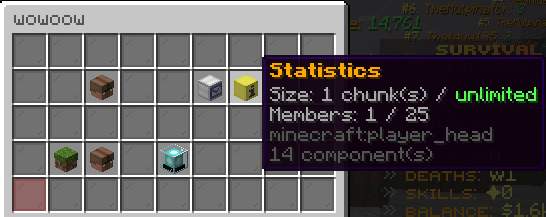
Once you have created your first claim, /claims will now display the claims management gui. This gui is where you can manage a specific claim. The gui will be labeled to display which claim you're editing.
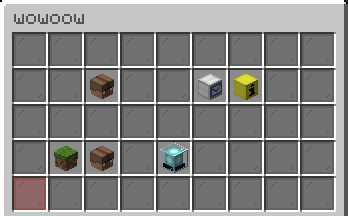
If you own multiple claims, your /claims will display all of your claims. Once one selected, it will display the claim management gui for that claim.
You can use the red back button to navigate through all of these menus easily.
¶ Claims Management Menu
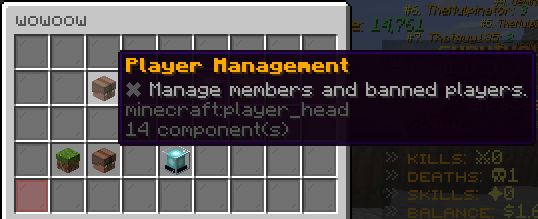
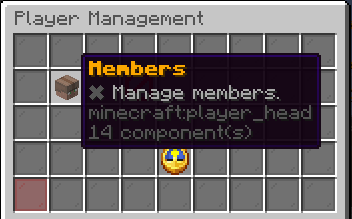
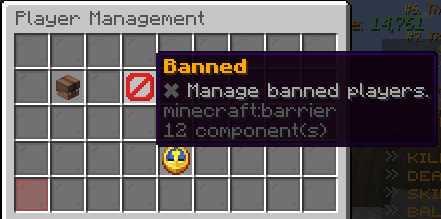
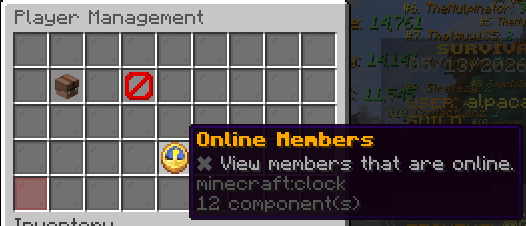
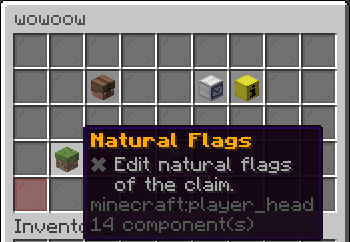
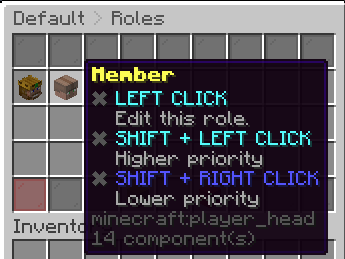
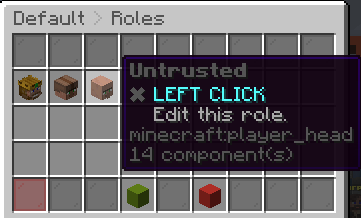
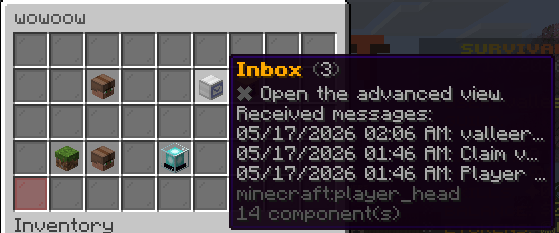
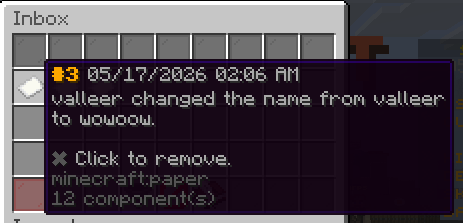
Below will go over the claims management menu.
¶ Claims Expiration
This table represents how long a land owner must be offline before their land expires, based on their total playtime on Survival. More playtime earns you longer expiration date.
| Playtime | Offline Time |
|---|---|
| 15 Minutes | 14 Days |
| 30 Minutes | 21 Days |
| 12 Hours | 45 Days |
| 1 Day | 60 Days |
| 15 Days | 90 Days |
| 30 Days | 180 Days |